How to Create a QR Code for Free Without an App
Published: 9 Jul 2026
Have you ever needed to share a link or Wi-Fi password quickly, but didn’t want to download yet another app just to make a QR code? You’re not alone, and thankfully, you don’t need to. This guide shows you exactly how to create a QR code for free, right from your browser, in just a few simple steps.
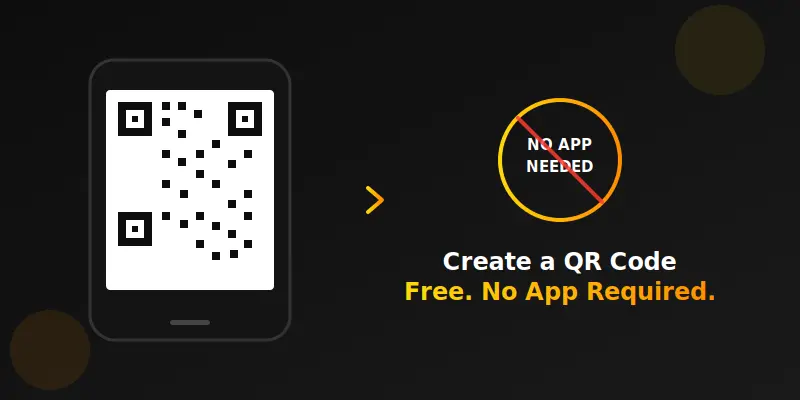
Making a QR Code Without Any App
Most people assume they need to download software to create a QR code, but that’s simply not true anymore. This section walks you through the entire process using nothing but a web browser.
Why You Don’t Need an App for This
Modern browsers can handle everything a QR code generator needs to do. There’s no reason to install extra software just to create a simple scannable code. A browser-based tool saves storage space and works on any device, including phones, tablets, and computers.
What You Can Turn Into a QR Code
You can create a QR code for website links, plain text, Wi-Fi login details, or contact information. Almost anything you’d normally type out can be turned into a quick scan instead. This makes QR codes useful for business cards, flyers, menus, and even personal use at home.
Step 1: Decide What You Want to Share
Before creating anything, decide exactly what information the QR code should hold. A website link works differently from a block of plain text or Wi-Fi credentials. Having this ready beforehand makes the entire process much faster.
Step 2: Open a Free Online QR Code Generator
Skip app stores entirely and use a browser-based tool instead. A good online QR code generator lets you type your content directly and see results instantly. No account creation or app permissions are required.
Step 3: Type or Paste Your Content
Enter your link, text, or details into the input box. Double check for typos, since even a small mistake will carry over into the final QR code. Once you’re confident it’s correct, move on to customizing the look.
Step 4: Choose a Size That Fits Your Use Case
If you’re sharing the code digitally, a smaller size usually works fine. For printed materials like posters or flyers, choose a larger size so it scans easily from a distance. Bigger is almost always safer when it comes to print.
Step 5: Pick Colors That Still Scan Well
It’s fine to add some personality with color, but contrast matters more than style. Dark colors on a light background remain the safest, most reliable choice. If you go too light or too similar between foreground and background, scanners may struggle to read it.
Step 6: Generate and Download Your QR Code
Once everything looks right, generate your QR code and download it as an image file. This file is now yours to use anywhere, on printed materials, digital posts, or shared documents. No further steps or accounts are needed.
Step 7: Always Test Before Sharing Widely
Before printing hundreds of copies or posting publicly, scan the code yourself first. Try it with more than one phone if possible, since camera quality can vary between devices. A quick test now can save a lot of frustration later.
Common Mistakes Beginners Make
Cropping too close to the edges, using low contrast colors, or shrinking the code too small are the most frequent issues. These small mistakes are the main reason a QR code might fail to scan. Keeping your design simple almost always leads to better results.
When a Free QR Code Generator Is Enough
For most personal or one-time uses, like sharing a link or Wi-Fi password, a simple free generator works perfectly well. You don’t need advanced tracking or editing features for basic day-to-day needs. Save the paid, dynamic options for ongoing business campaigns instead.
Try It Yourself Right Now
Ready to create your own? Use our free QR code generator online to turn any link or text into a scannable code in seconds. No app, no sign-up, just type your content and download your finished QR code instantly.
Conclusion
Creating a QR code for free without an app is easier than most people expect, and it only takes a few minutes once you know the steps. From choosing the right content to picking colors that actually scan well, small details make a big difference in the final result. My honest recommendation is to start with our free QR code generator online and test your code before sharing it widely. Give it a try today, and take a look at our other simple guides for more everyday tech solutions.
FAQs:
Yes, but keep strong contrast between the foreground and background colors. Poor contrast is one of the most common reasons a QR code fails to scan.
Test it yourself with your phone’s camera before sharing it anywhere. Testing with more than one device gives you extra confidence it will work for everyone.
You’ll receive a downloadable PNG image, which works well for both online sharing and most printing needs.

- Be Respectful
- Stay Relevant
- Stay Positive
- True Feedback
- Encourage Discussion
- Avoid Spamming
- No Fake News
- Don't Copy-Paste
- No Personal Attacks
- Be Respectful
- Stay Relevant
- Stay Positive
- True Feedback
- Encourage Discussion
- Avoid Spamming
- No Fake News
- Don't Copy-Paste
- No Personal Attacks
